
New coach guide video
Same flow as this page: sign in, pin IQ Capture, add an opponent, Capture Box Score and Plays, Extract Roster, Save Roster when needed, Process Game. Captions on screen. No login required.
What Opponent IQ Pro is — and is not
Opponent IQ Pro is baseball and softball scouting software for your program. The annual program license is $399.99/year for the whole staff. The license includes IQ Capture, Pitching, My Team IQ, and IQ Prospects. IQ Capture copies the Box Score and Plays from a scorecard page you already opened. Opponent IQ organizes that text into stats, tendencies, and printable reports. It does not generate AI pitch calls, lineup recommendations, or coaching advice.
- No bots. No scraping. You click Capture on a page you already opened. Paste is backup only.
- Staff share one $399.99/year team license. Treat the password like a staff password.
- Unlimited opponents.
Your team code (from the welcome or receipt email) or your school name, your password, and IQ Capture pinned in Chrome or Edge. High school and travel staff Capture from the live scorekeeping page — Plays and Box Score. College staff Capture the school athletics scorecard — Plays and Box Score.
Sign in
- Open app.opponentiq.com.
- Enter your team code (example:
NORTH) or school name, plus your password. - The first visit, accept the Terms of Use on behalf of the program.
Forgot the password? Use Forgot Password on the sign-in card. If sign-in shows a connection error, wait a few seconds and try again — the app retries automatically.
Download IQ Capture, then pin it
IQ Capture is the way Opponent IQ brings games in. Install it before you add an opponent so game day is one click.
- On the Dashboard, open the IQ Capture card.
- Install from the store listing (Chrome or Edge; Safari coming soon). Confirm version v0.4.30.
- Click the puzzle-piece Extensions icon in the browser toolbar.
- Pin IQ Capture so the icon stays on the toolbar.
School networks should use the store listing, not an unpacked zip. Capture only copies a page you already opened. It does not scrape in the background and it does not process until you click Process Game.
Add this week’s opponent
Everything in the app is scoped to the opponent selected in the sidebar. The name has to be precise — Opponent IQ uses it to match the scorecard text.
- In the sidebar, click Add Opponent.
- Type the school the way it appears on the scorecard — for example Norman North, not NN or North.
- Select them from the Opponent dropdown. Dashboard, Processing, Reports, and Exports all follow that selection.
Nicknames and abbreviations are the usual reason a game processes but numbers look empty. Rename anytime with Rename Opponent. Do not create a second opponent for the same school unless you truly need a separate season bucket.
Open Processing
In the sidebar, click Processing. Confirm the opponent from step 3 is selected. The Game box and roster panel are on this page — Capture, Extract Roster, Save Roster, and Process Game all happen here.
Capture Box Score and Plays
Open the completed game’s scorecard in the same browser, with your own login. Then click the pinned Capture button.
- Open the scorecard page you already use for that game.
- Click Capture. Live scorekeeping pages usually need Plays, then Box Score. College athletics scorecards often copy both in one click; if those sections are on separate tabs, open each tab and Capture again.
- Return to Processing and confirm the Game box filled with that text.
- High school / travel live scorekeeping: Capture Plays, then Capture Box Score.
- College athletics scorecards: one Capture often copies Plays + Box Score. If they live on different tabs, open each tab and Capture so both sections are included. Missing either section is the most common reason a college game looks incomplete.
- Other live game pages: one Capture on the game view is often enough. If Plays and Box Score are split, Capture each.
If Capture is not on that page, copy the full play-by-play and Box Score into the Game box yourself, then continue with Extract Roster. Do not make paste the default — IQ Capture is the intended path.
Click Extract Roster after each game
On Processing, click Extract Roster. It pulls names and
#10-style numbers from the captured Game text into the Roster box.
Do this after every game so substitutes and new starters make the list.
- With the Game box filled, click the Extract Roster button.
- Review the list. Fix spellings so they match the scorekeeping text.
- New DH, PH, or bench names from this game should now be on the roster.
Save Roster the first time — then only when a player is new
Click Save Roster on the first game for this opponent. After that, Save again only if Extract added a player who was not already on the list. You do not need to Save Roster after every game if the names did not change.
Process Game, then check Reports
Click Process Game. Then open Reports (same opponent selected) and confirm numbers are populating — Season Summary is enough for a quick check.
If counts look empty or a player is missing, it is usually a naming issue: the opponent name does not match the scorecard, or a roster name does not match the play-by-play. Fix the name, click Undo Last if that game already saved, Extract Roster again, Save if a player is new, then Process Game.
Trust the status colors
- Green Clean save. Coach off it.
- Yellow Saved with warnings — review BIP vs box or blank strike % before you lean on that piece.
- Red Don’t trust it. Use Undo Last, fix roster or source text, then process again.
Yellow is normal on some college boxes that print total pitches (NP) without pitch-letter strings. Season strike % only uses outings that actually recorded a strike split — it will not invent a fake percentage.
Reports and exports
Open Reports with the same opponent selected. Start with the team snapshot, then drill in.
- Season Summary — Pregame snapshot: who puts the ball in play, walks, strikeouts, runs, and damage.
- Damage Report — Extra-base power and where it goes.
- Player Scout — One hitter: BIP, K/BB, GB/FB, bunt, XBH, directional profile.
- Game Filters — Check which processed games to include in reports and exports. This is a game list, not a handedness or pitcher-side filter.
- Pitching Report — Rotation, bullpen, workload, S%. Needs Box Score in the Capture.
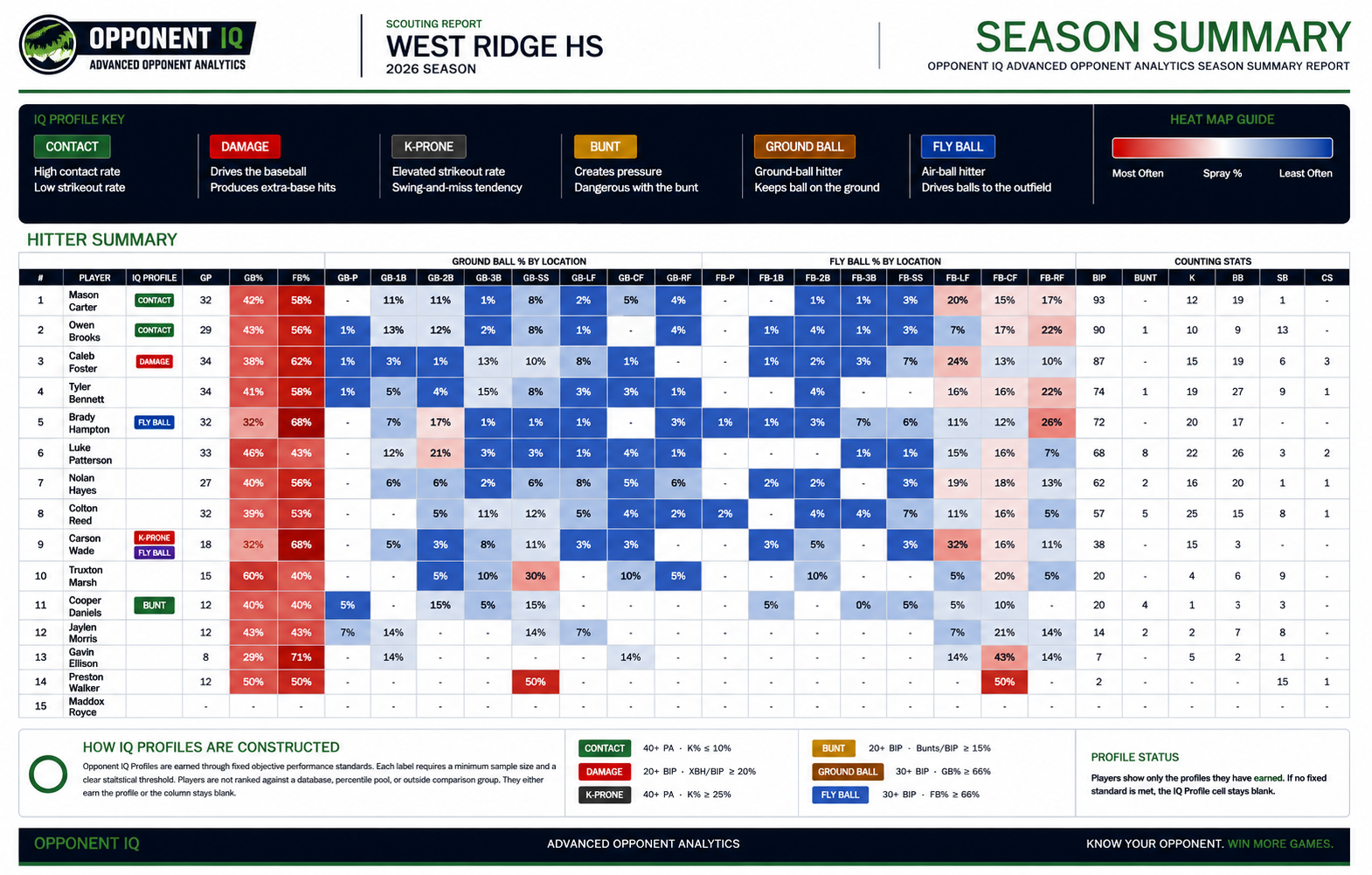
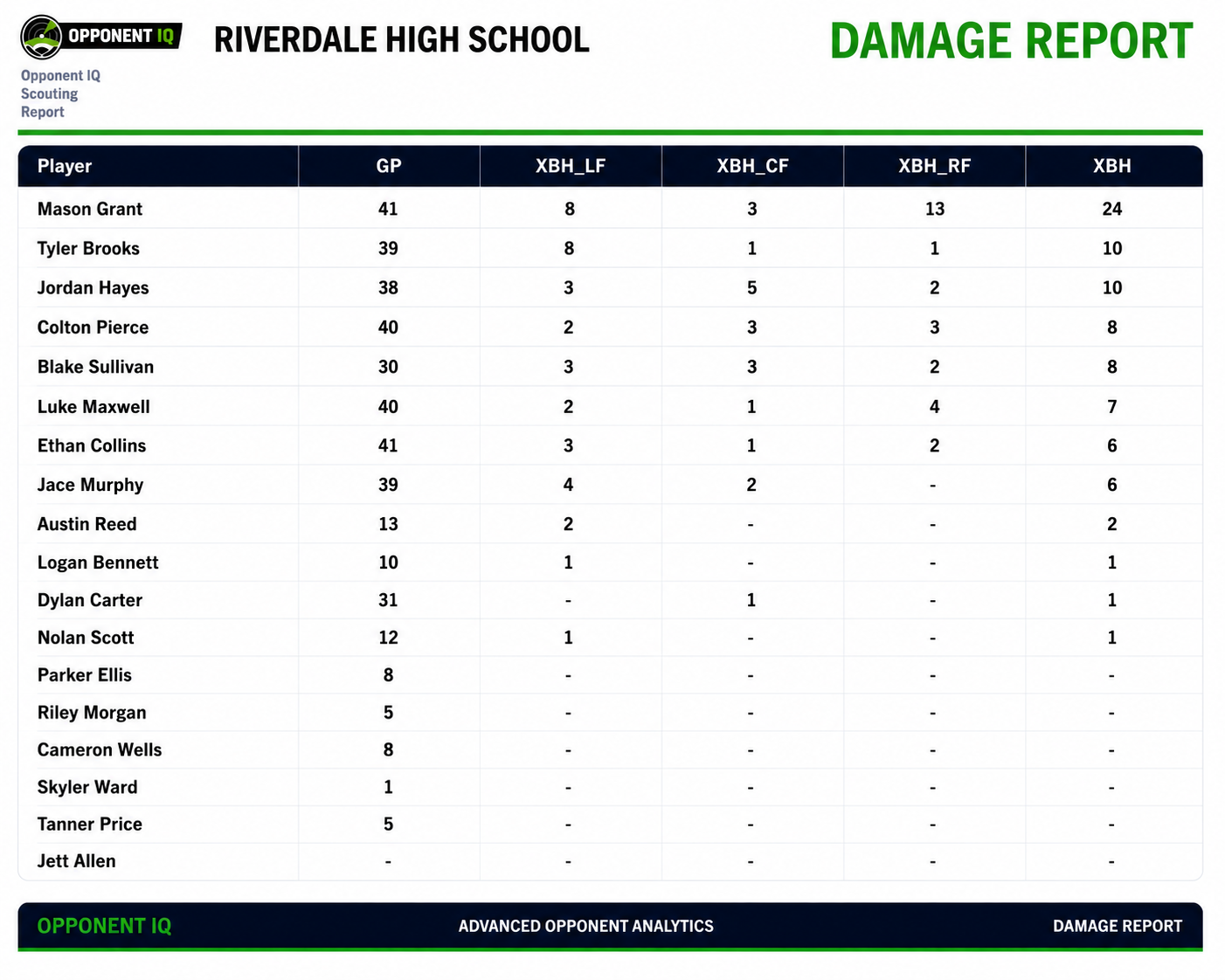
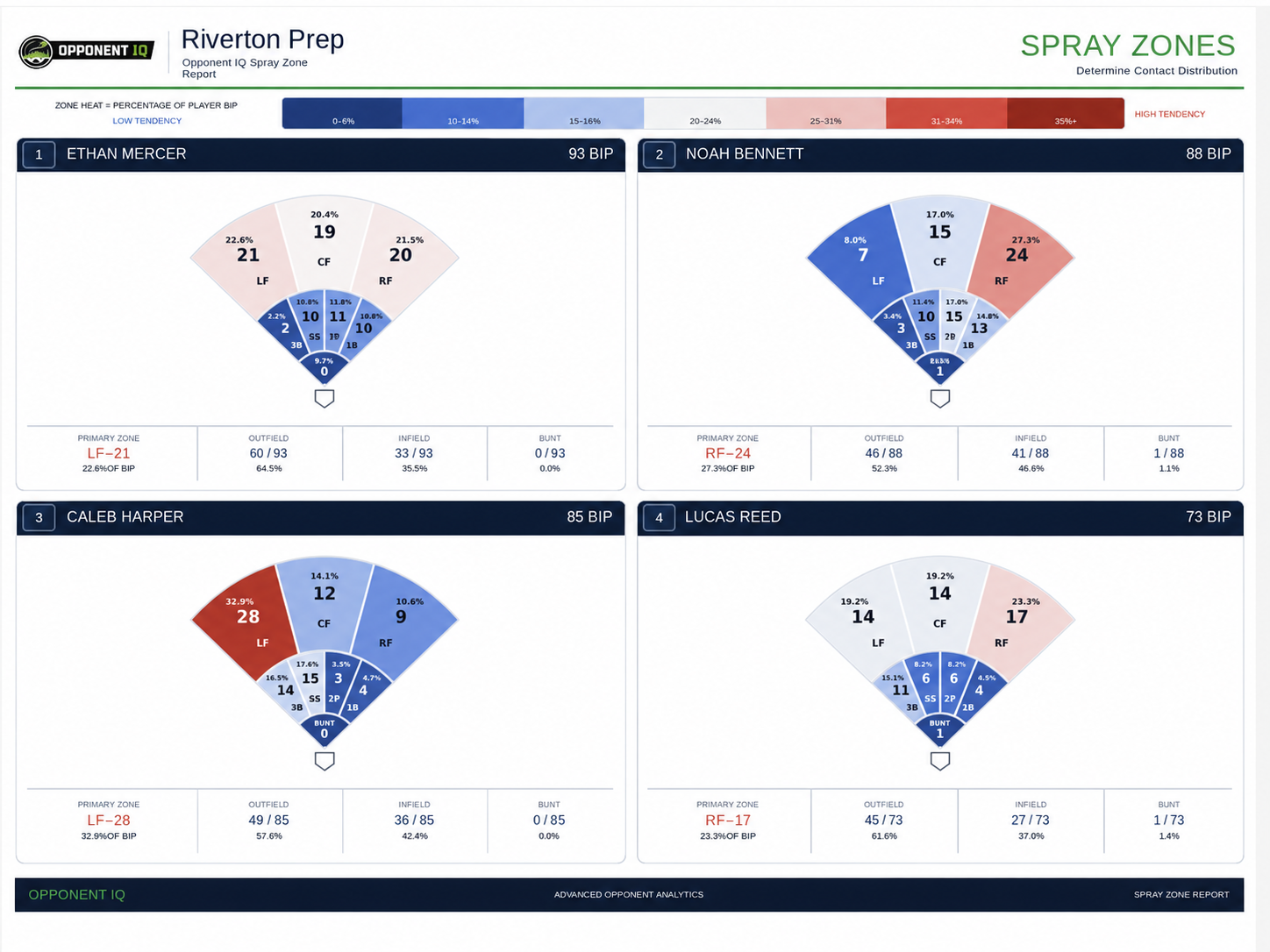
Open Exports for the staff meeting. Files cover the selected opponent and only the games checked on Reports: Season Summary, Damage, Spray Zone, Pitching, player pitching cards, Count & Swing Tendencies, Lineup Intelligence, and the Excel workbook. Spray Zone and player cards can take about 1–3 minutes — stay on the page until the file downloads.
My Team IQ is own-program development under My Team in the sidebar, separate from opponent scouting. IQ Prospects lives on that same roster page: add a kid and college coaches see only the players you choose. Dashboard Coach Resources has extra staff walkthroughs after you sign in.
Checklist
- Sign in with team code or school name.
- Download IQ Capture from the Dashboard card and pin it to the toolbar.
- Add this week’s opponent using the scorecard school name.
- Open Processing.
- Capture Box Score and Plays for a completed game.
- Click Extract Roster after each game (subs and new starters).
- Click Save Roster the first time, then only if a new player was added.
- Click Process Game. Open Reports and confirm numbers populated.
- Export Spray Zone and Pitching Report for the staff meeting.
If something looks off
- Reports look empty after Process Game
- Usually a naming issue. Match the opponent name to the scorecard school, and roster names to the play-by-play spelling or
#10number. Undo Last, Extract Roster, Save if a player is new, then process again. - A player’s stats didn’t show up
- Almost always a roster mismatch. Extract Roster after that game so substitutes are on the list, fix the spelling, Save Roster if they are new, Undo Last, then reprocess.
- I processed the wrong game
- Use Undo Last on that opponent. It removes the most recent game from season totals.
- I need a clean slate for this opponent
- Reset Season Totals in Processing’s Danger Zone clears games but keeps the saved roster. Delete Team removes the opponent entirely.
- College spray looks thinner than high-school scorecards
- College play-by-play often omits hit location. Opponent IQ only maps contact when the text gives a usable direction. Season BIP can still be complete.
- Spray zone counts don’t add up to BIP
- BIP is every ball in play. The field chart only shows balls with a usable location, so zone totals can be lower than BIP on purpose.
- Where is Pitching?
- Reports → Pitching after a game that included Box Score. Rotation, bullpen, workload, and S%. Export Pitching Report and player pitching cards from Exports.
- How do I use My Team IQ and IQ Prospects?
- Sidebar My Team IQ → Process My Team Data → drop the season CSV (or college PDF) → Process CSV / PDF. Open Players, set Grad, Pos, Bats, and Throws, then Share available kids onto IQ Prospects. College PDF seasons can view the list but cannot add players.
- How do I open Offseason Intrasquads?
- Included in Opponent IQ Pro. Sidebar My Team IQ → Process My Team Data → set Games (next to Sport) to Offseason Intrasquads. That is a separate file from in-season. Process both clubs onto one roster. Switch Games back to In Season Games anytime.
In the app, the Help button (bottom corner) covers Capture, Pitching, My Team IQ, Offseason Intrasquads, IQ Prospects, reports, exports, college scorecards, and swing decisions. Questions: admin@opponentiq.net.